
Welcome to DJ Knowledge Base
2. Everest Cast Accessing Channel Settings
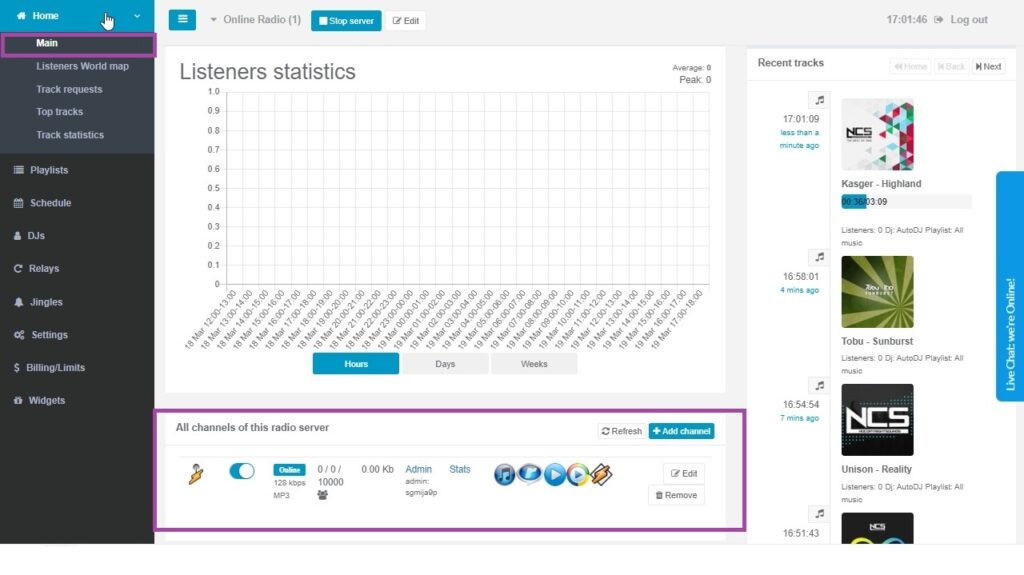
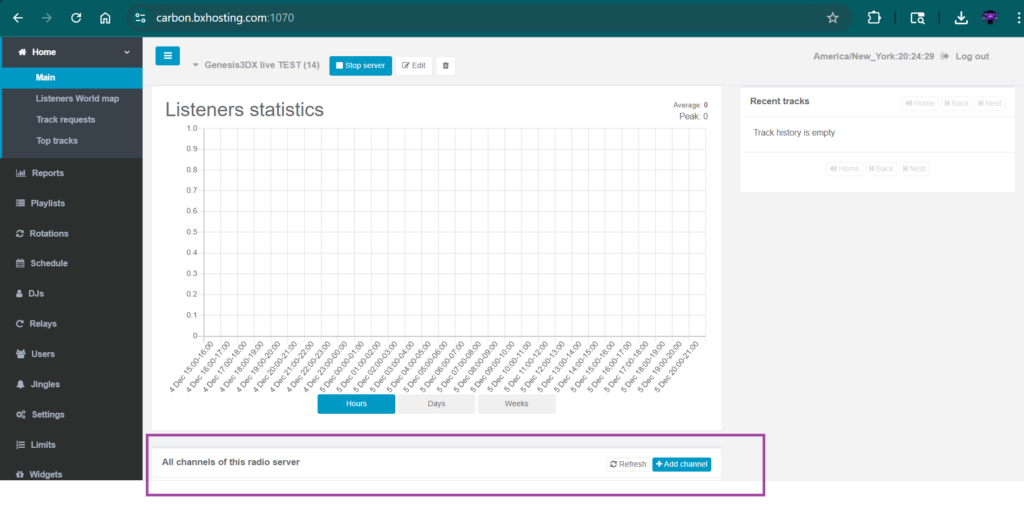
From the main home page/dashboard, scroll to the bottom of the page where you will see a list of existing channels. If there isnt a channel at bottom: Lets add one.
Adding a New Channel
BX Hosting plans allows for multiple channels, you can add them from this interface.
- Click the “Add channel” button, usually found at the top or bottom of the channels list.
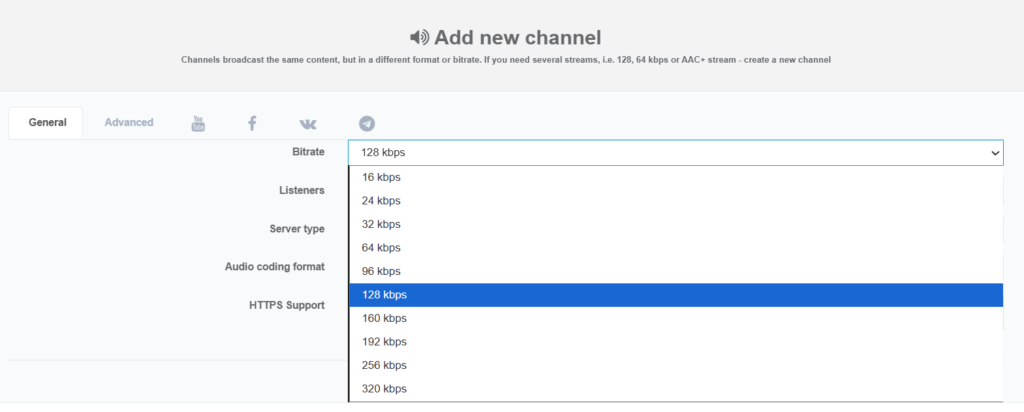
- A configuration window will appear, prompting you to set the following details:
- General Tab
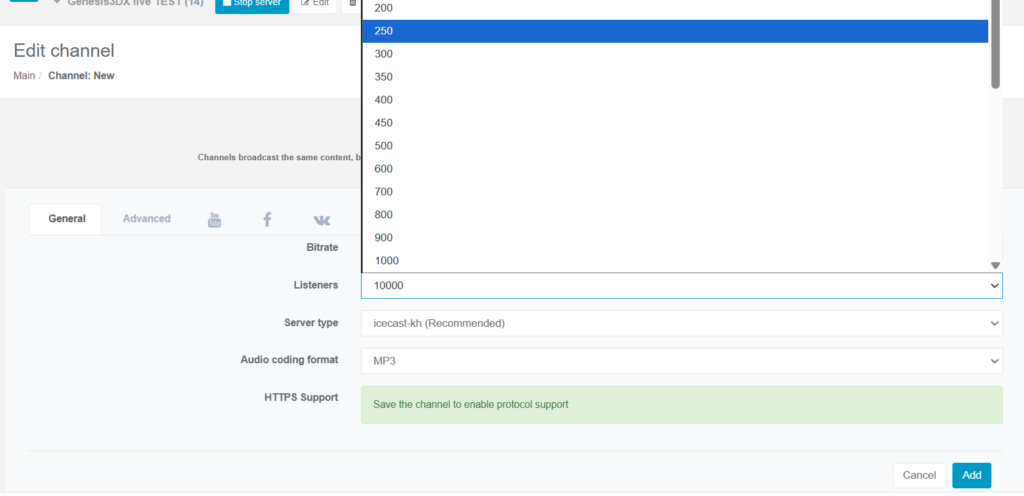
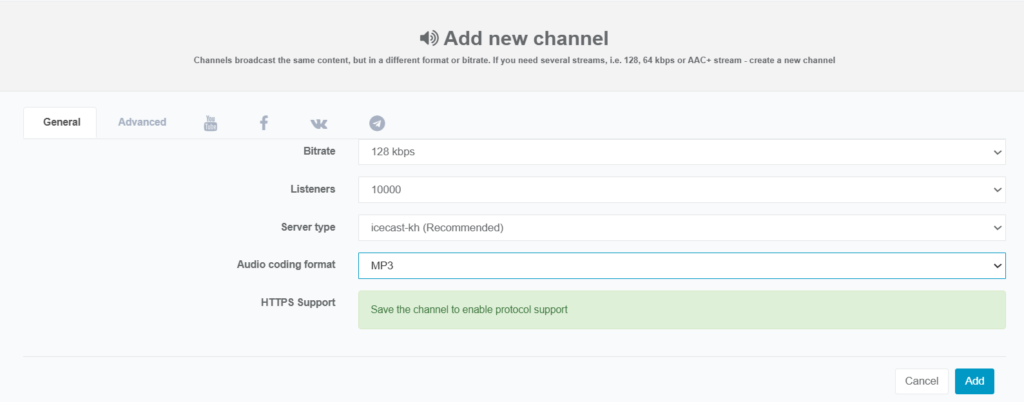
- Listeners: The “Listeners” field (often labeled “Listeners Limit” or similar) is used to set the maximum number of simultaneous listeners that the specific stream endpoint can support. If you have multiple Stations spread listeners amount ( Example) Plan allows 10,000 listeners, i would only put listeners at 250 so you will have no errors.
- Sever Type: Choose between SHOUTcast or Icecast. I usually make both SHOUTcast 2.6 and an Icecast.
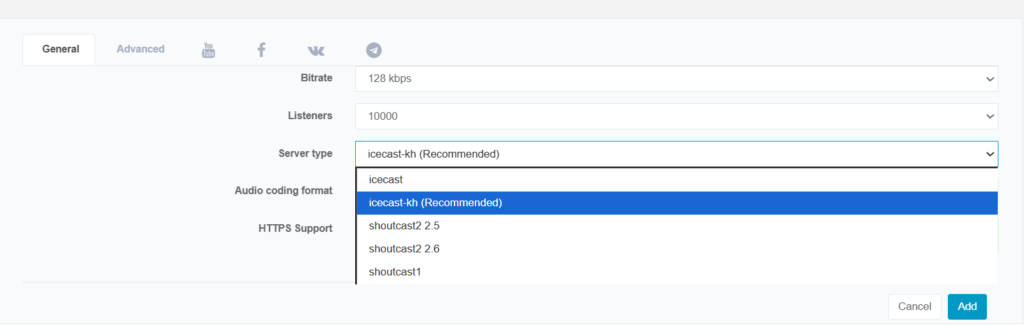
- Audio Format: Select the format (e.g., MP3, AAC+, FLAC). Here you would select MP3.
Advanced Tab
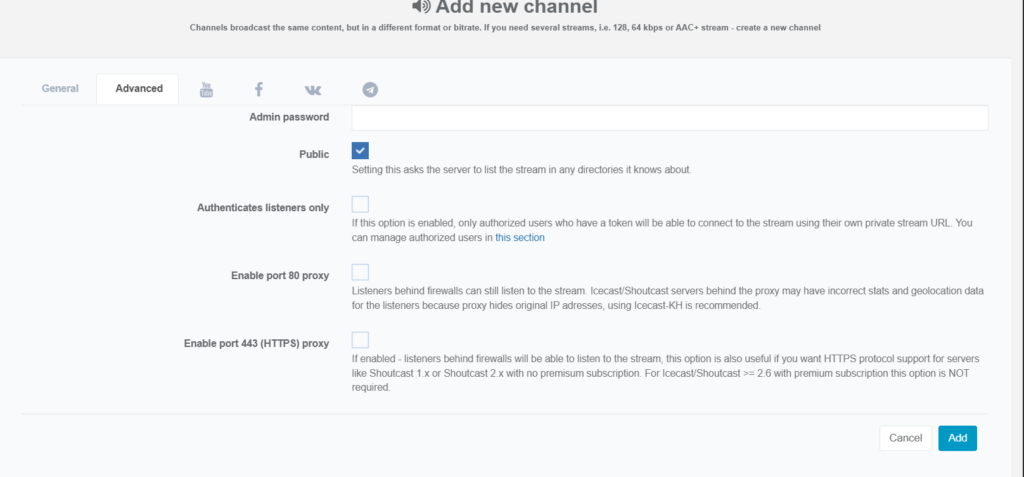
- Public Listing: Decide whether to publish the channel to streaming directories in the “Advanced” tab.
- Port 80 Proxy: Optionally enable this for listeners behind strict firewalls.
- Enable port 443 (HTTPS) proxy – If enabled – listeners behind firewalls will be able to listen to the stream, this option is also useful if you want HTTPS protocol support for servers like Shoutcast 1.x or Shoutcast 2.x with no premisum subscription. For Icecast/Shoutcast >= 2.6 with premium subscription this option is NOT required.
YouTube Tab
- Configure simulcasting to YouTube by entering your YouTube stream key and URL (if this feature is enabled on your account)
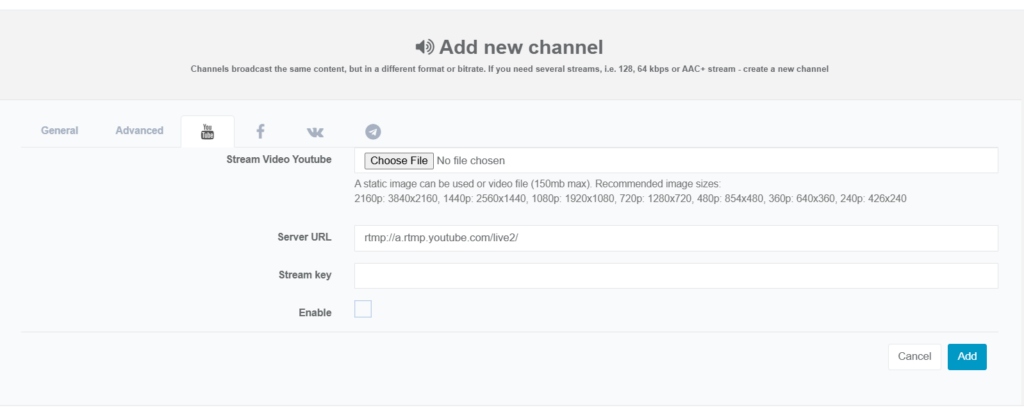
As well as other Tabs like Stream Video FB.com, Etc
Editing Existing Channels
You can modify settings for existing channels at any time.
- Find the channel in the list on the main dashboard.
- Click the “Edit” (pencil) icon next to that channel.
- Modify the settings as needed (e.g., change the stream password or bitrate).
- Click Save to apply changes.
Note: All channels within a single station/server will generally broadcast the same content source (either AutoDJ or the current live DJ feed) but with different technical settings (bitrate, format).