7. Virtual DJ Layout
The Layout menu provides the ability to change the overall look and feel of the Graphical User Interface (GUI). Depending on the Skin Layout that is chosen, other options become available to further customize the details of different areas such as the waveform and jog wheels. The Starter Layout has no customization ability, while Essentials and Pro Layouts have different Layout Options.
ESSENTIALS
Color Scheme – Changes the overall color of the layout (or skin). 3 options are available; Default, Contrast, or Daylight.
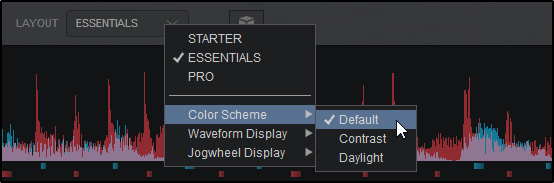
Default
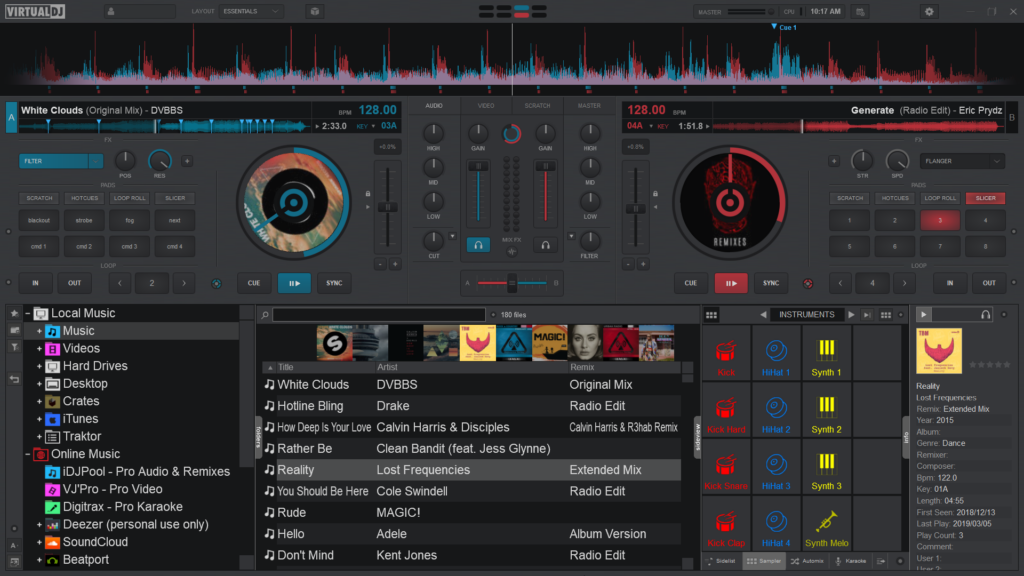
Contrast
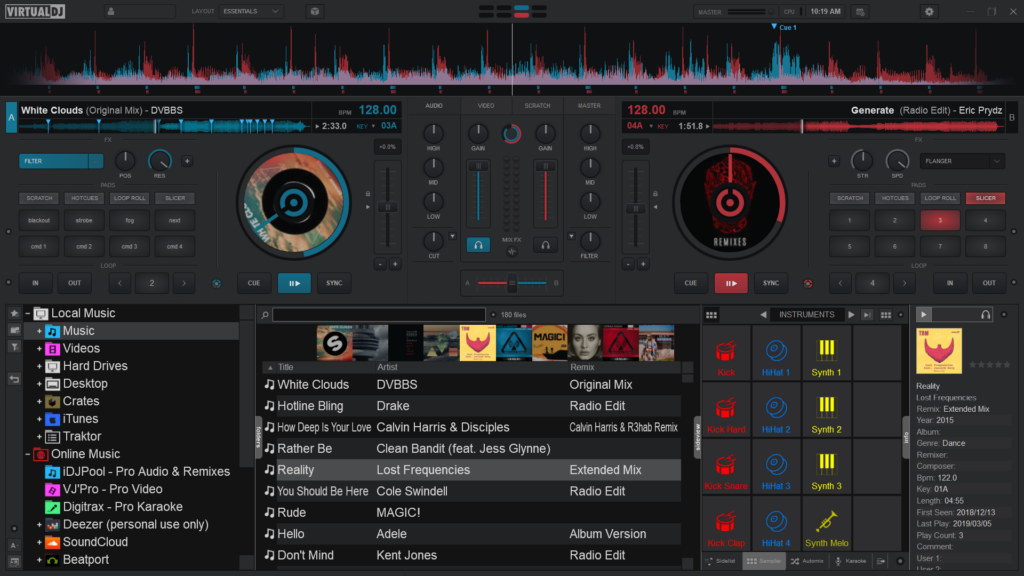
Daylight
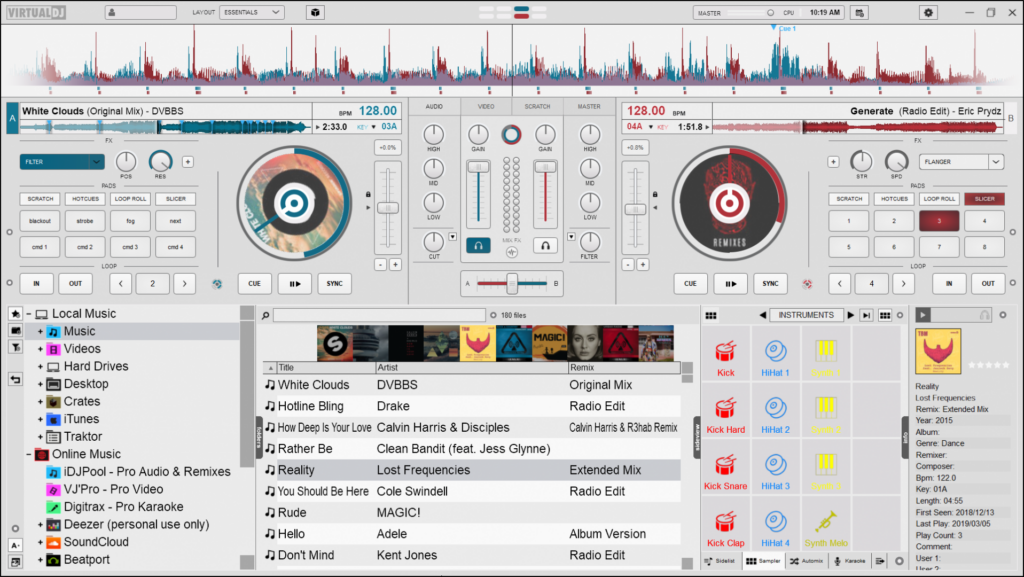
Waveform Display
Changes the appearance of the Rhythm Wave.
3 display options are available; Beats, Colors, or Shapes. An additional option to Show Gridlines on any of those options is also available at the bottom of the menu.
Beats
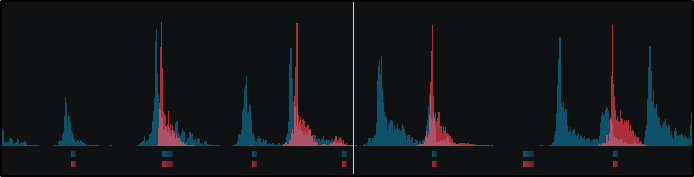
Colors
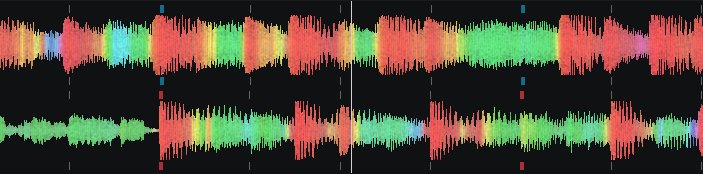
Shapes
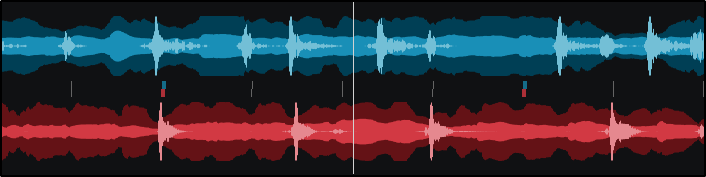
Show Gridlines

Jogwheel Display
Changes the look of the jogwheel.
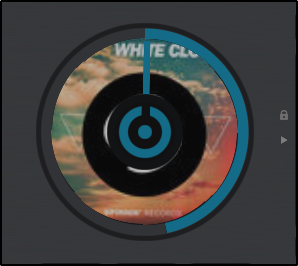
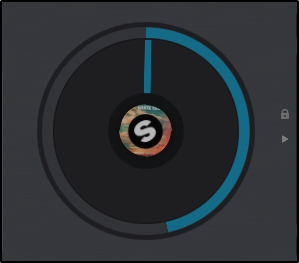
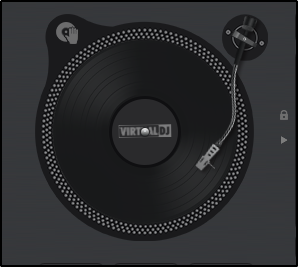
2 options are available; Turntable Look(default) and Spinner Look. Additional options for cover art display are also given for each look; None, Small, or Large(default).
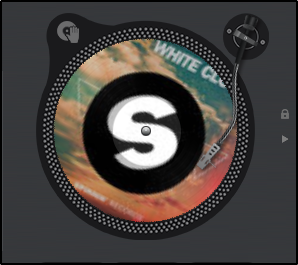
Turntable Look w/Large Cover Art
PRO
Color Scheme
Changes the overall color of the layout (or skin).
4 options are available; Default, Contrast, Dark Mode, or Daylight.
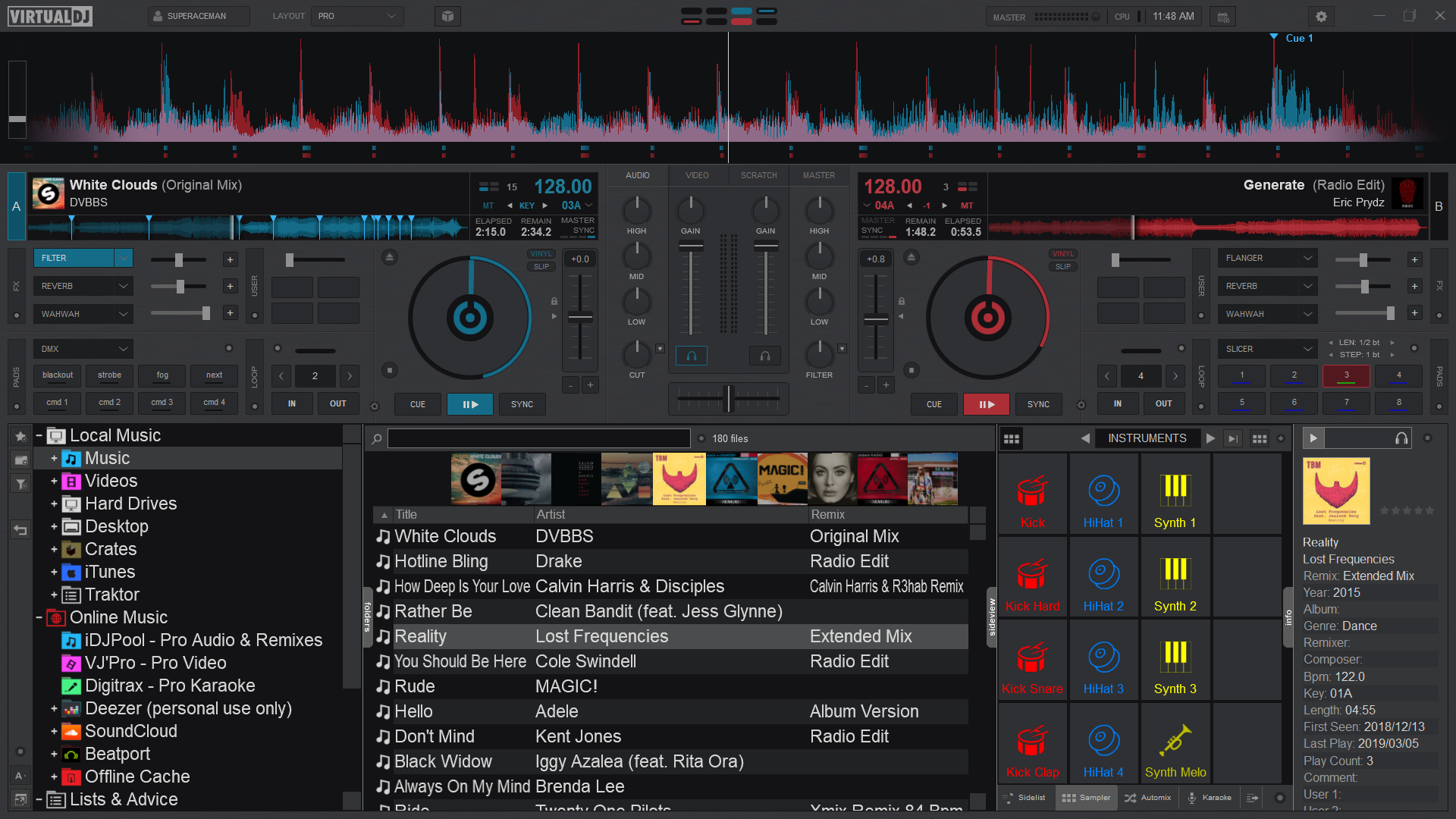
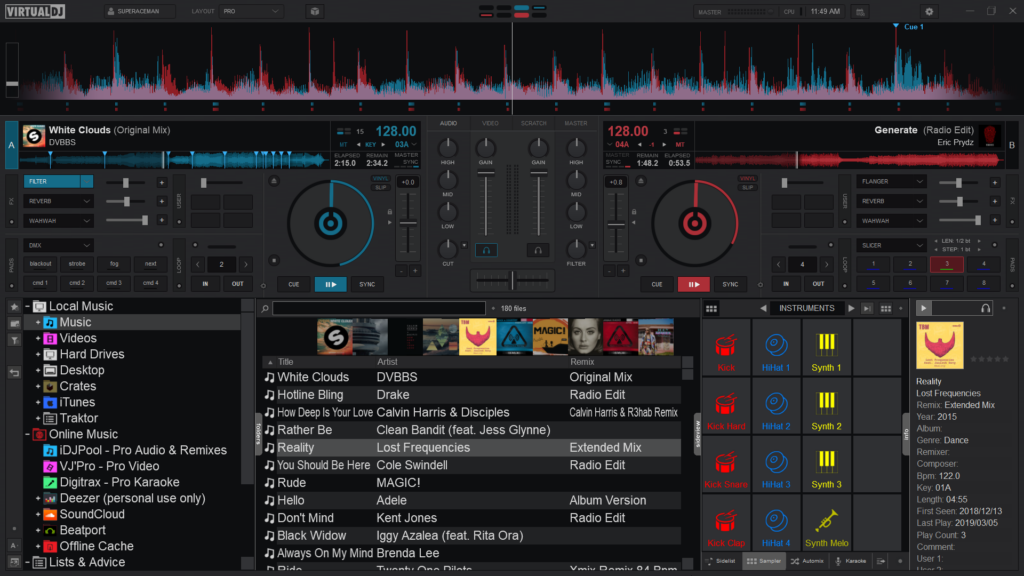
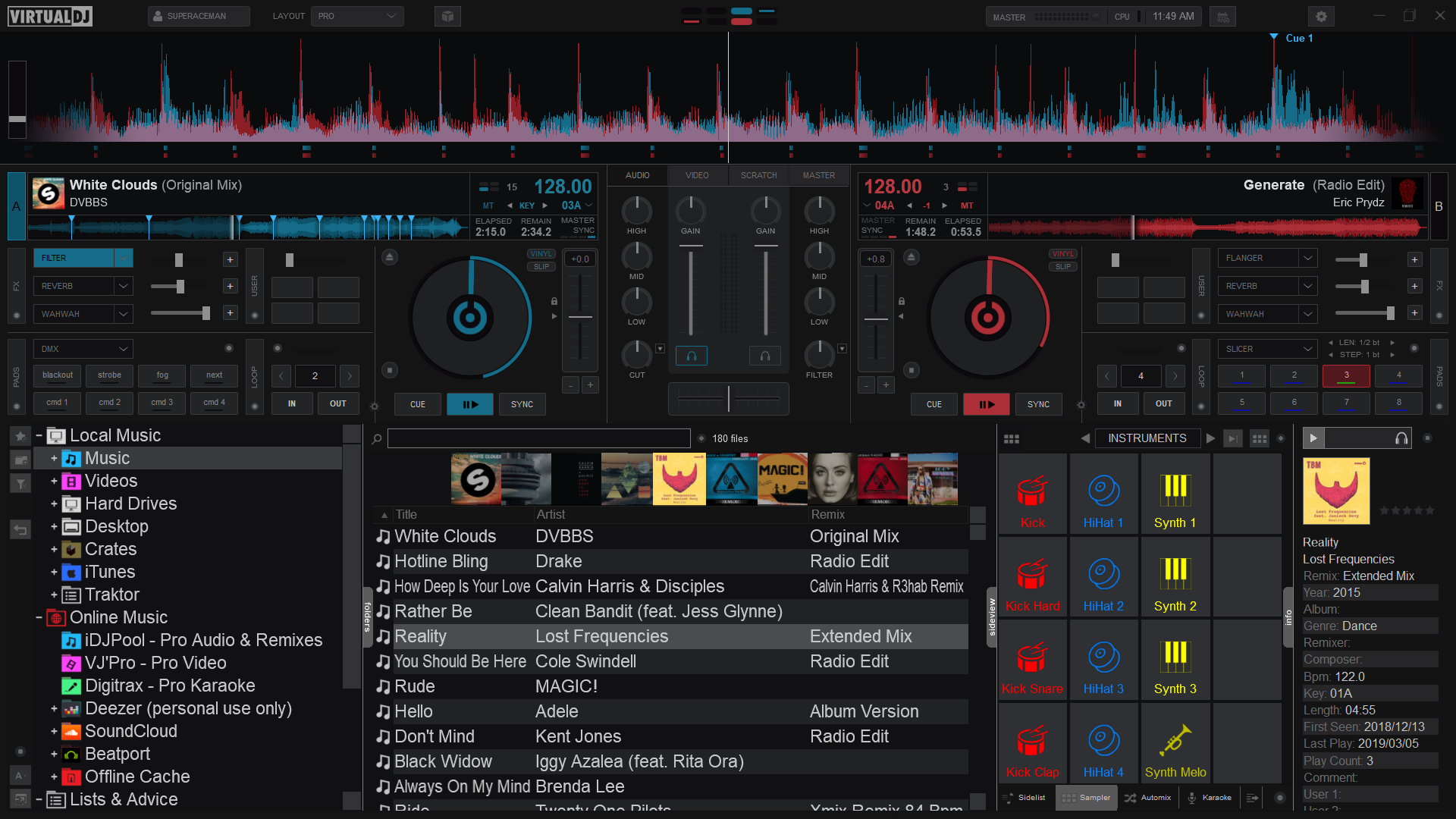
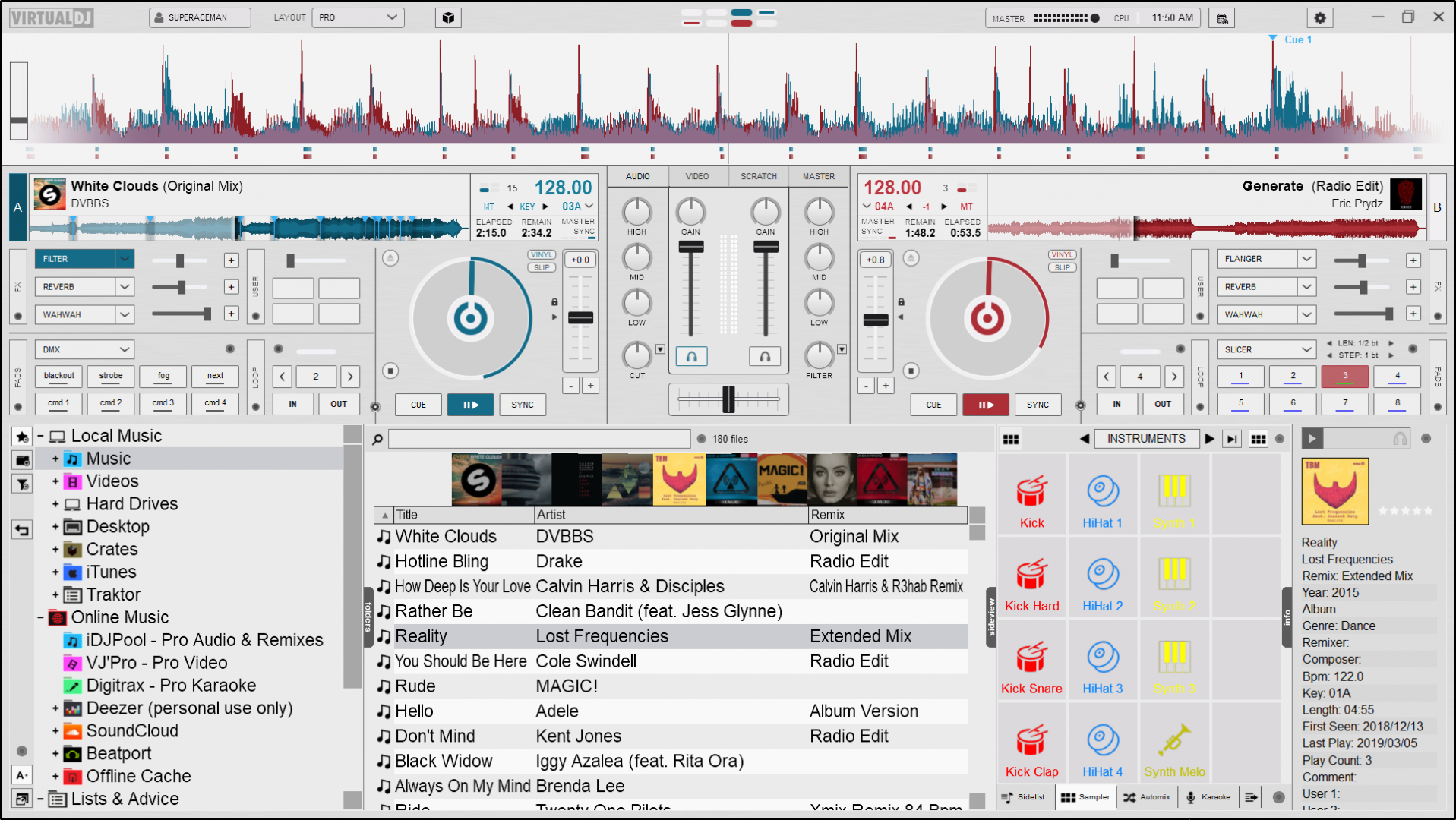
Waveform Display
Changes the appearance of the Rhythm Wave.
3 appearance options, 3 color options, 2 position options, as well as the ability to show grid lines on the wave and display a bar counter on the waveform:
Appearance Options
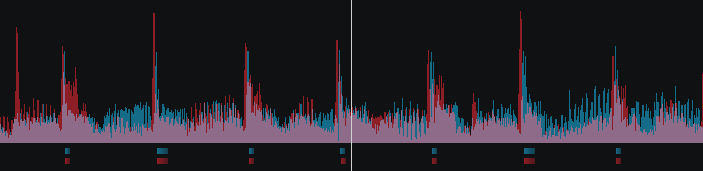
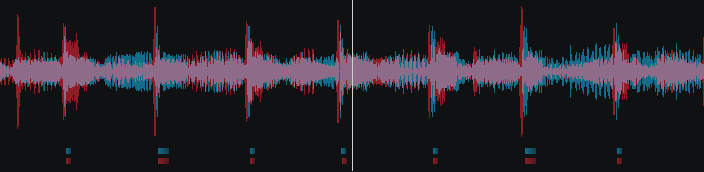
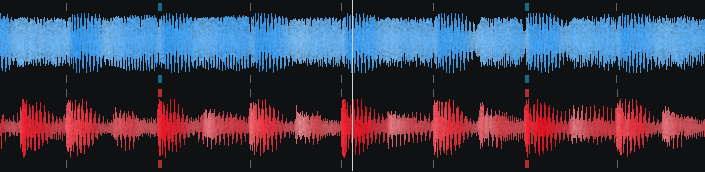
| Rhythm Enhanced | Rhythm Mirrored | Full Spectrum |
Color Options
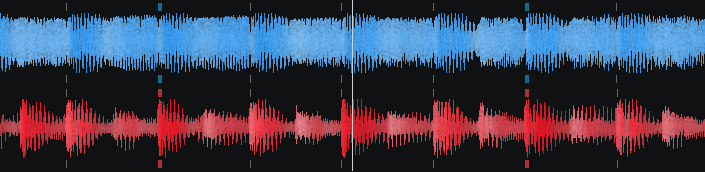
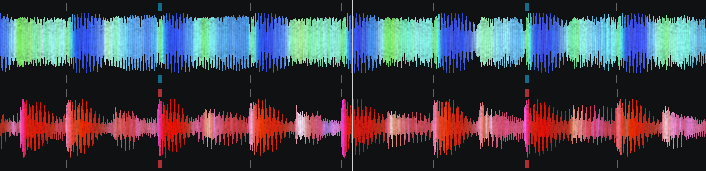
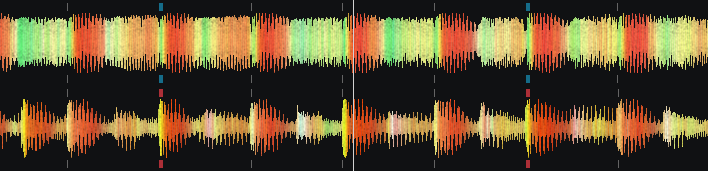
| Monochrome (default) | Full Spectrum | Multi Color |
Position Options
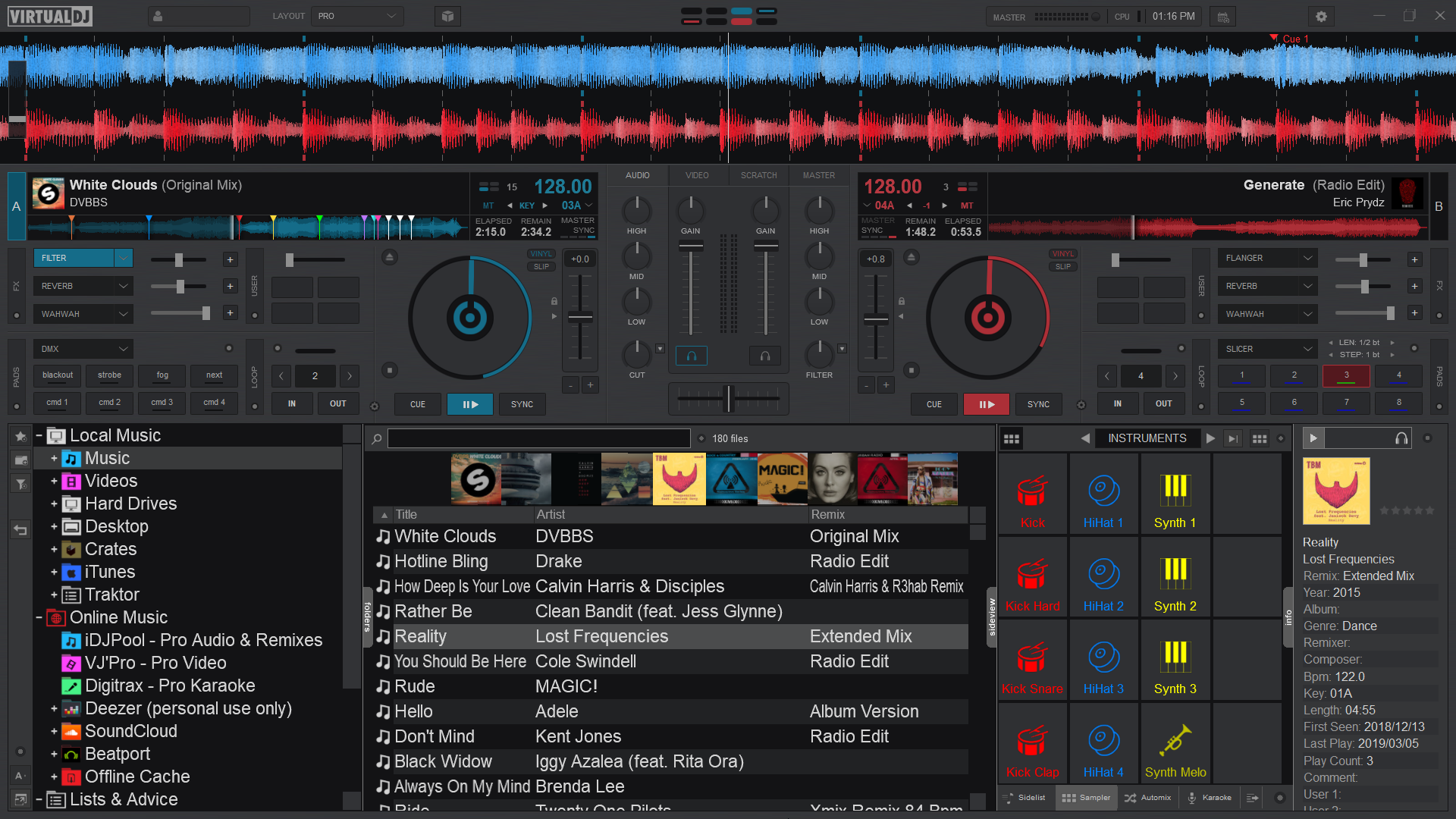
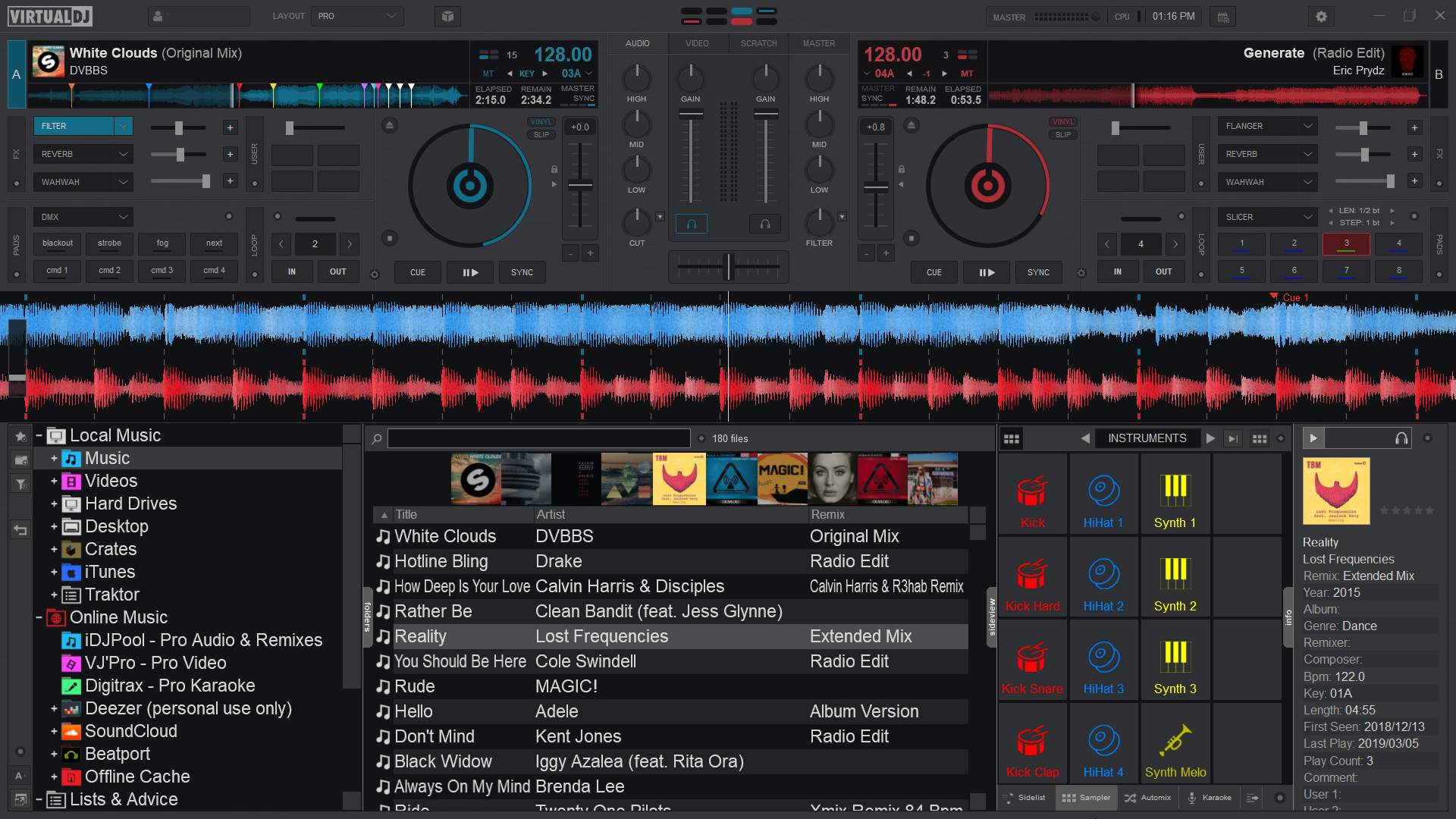
Grid lines and bar counter
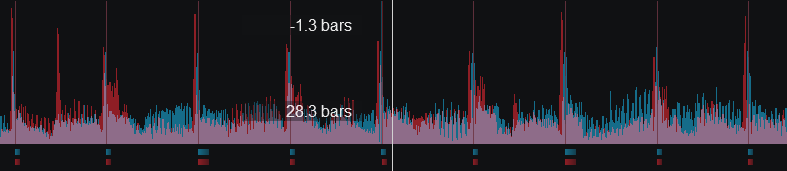
Rhythm Enhanced Waveform w/Grid Lines and Bar Counter
Jogwheel Display
Changes the look of the jogwheel.
3 options are available; Needle, Text, or Needle + Text. The Needle look (default) displays just a spinner while the Text look will display deck information such as BPM, Pitch values as well as elapsed and remaining time. Choosing Needle + Text will combine the 2 looks together.
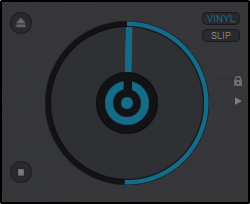
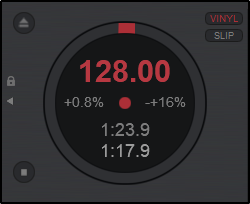
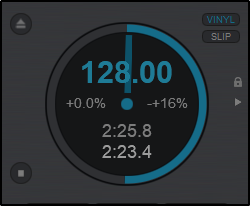
| Needle | Text | Needle + Text |
Beat Counter
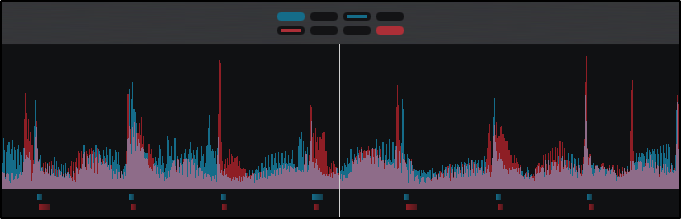
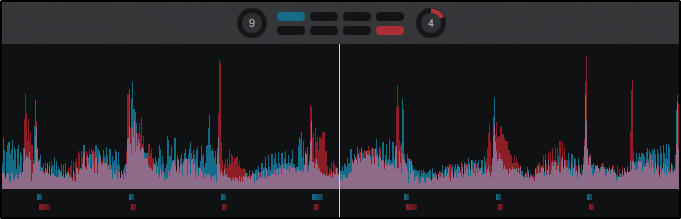
Changes the way Phrases are displayed. If Phrase Bars is selected, the phrase will be displayed inside the Beat Keeper with smaller dashes inside the main display. If Phrase Circles is selected, the phrase will be displayed on the outside of the Beat Keeper in a circular display. Selecting Show on Waveform will display the phrase position in text on the waveform.
4-Decks
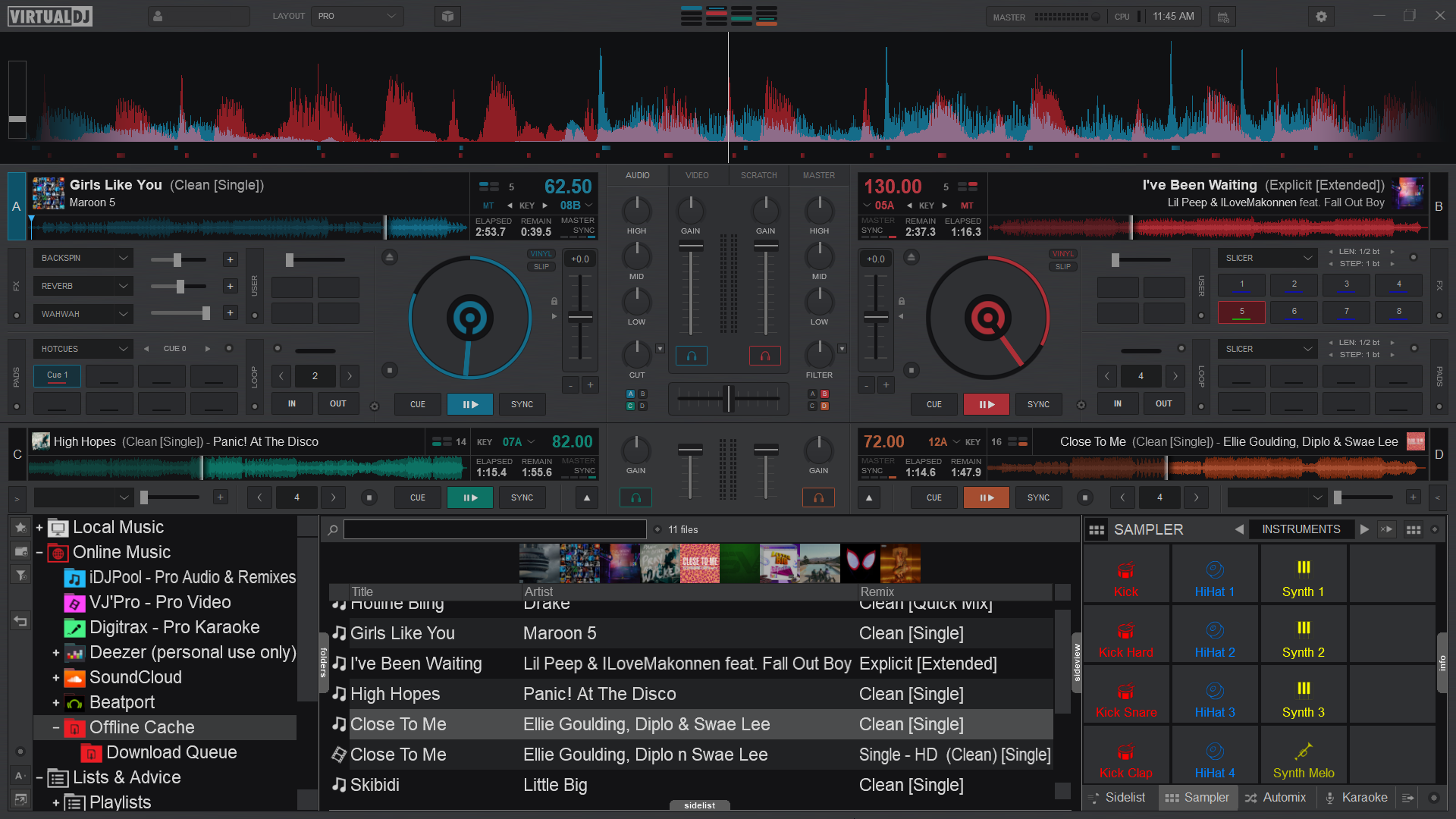
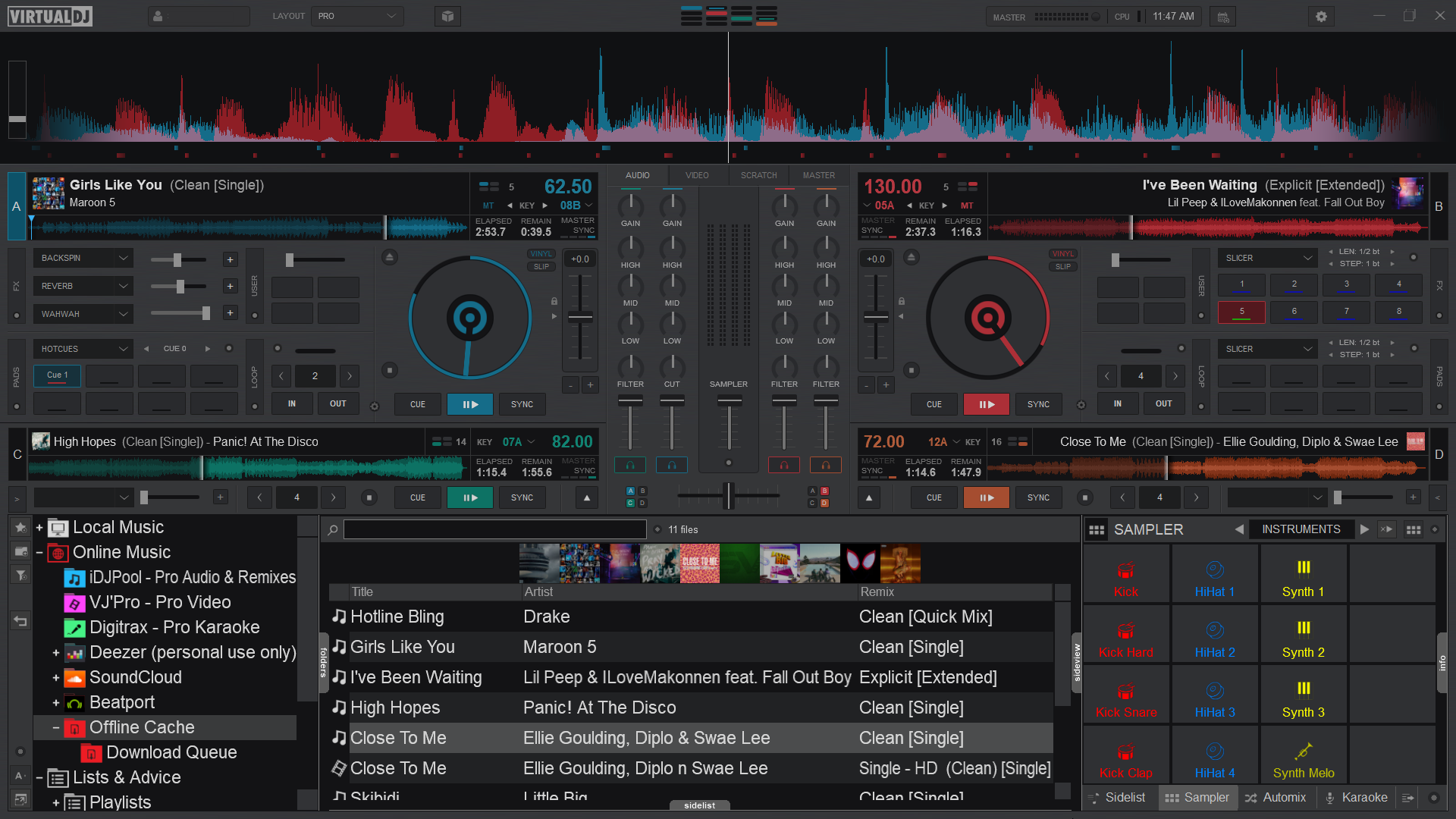
Displays 4-Deck Mode.
Once selected additional display options are available. The default display is 4-Deck with a 2+2 Channel Mixer but can be changed to a full 4-Channel Mixer.
Performance
Color Scheme
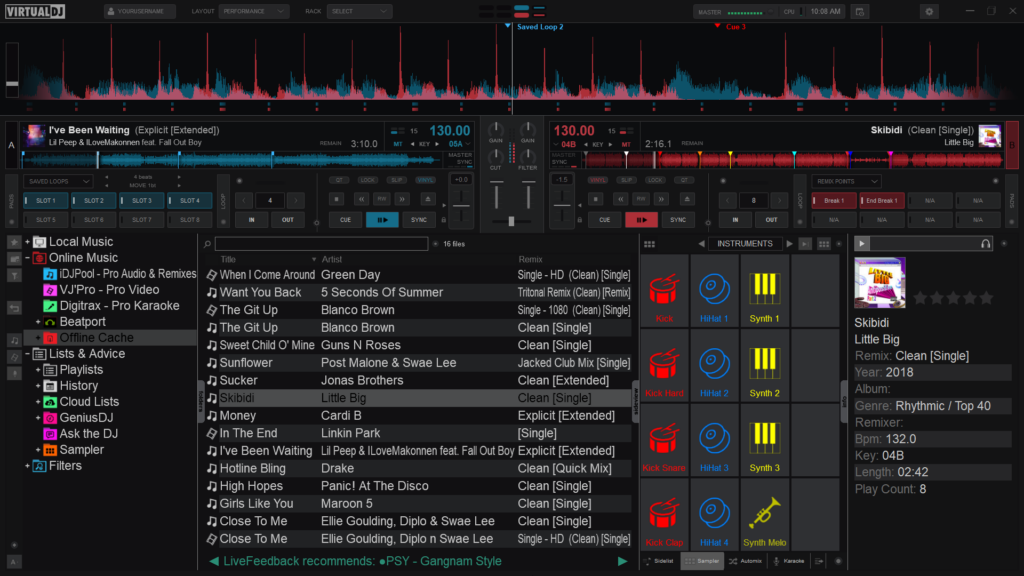
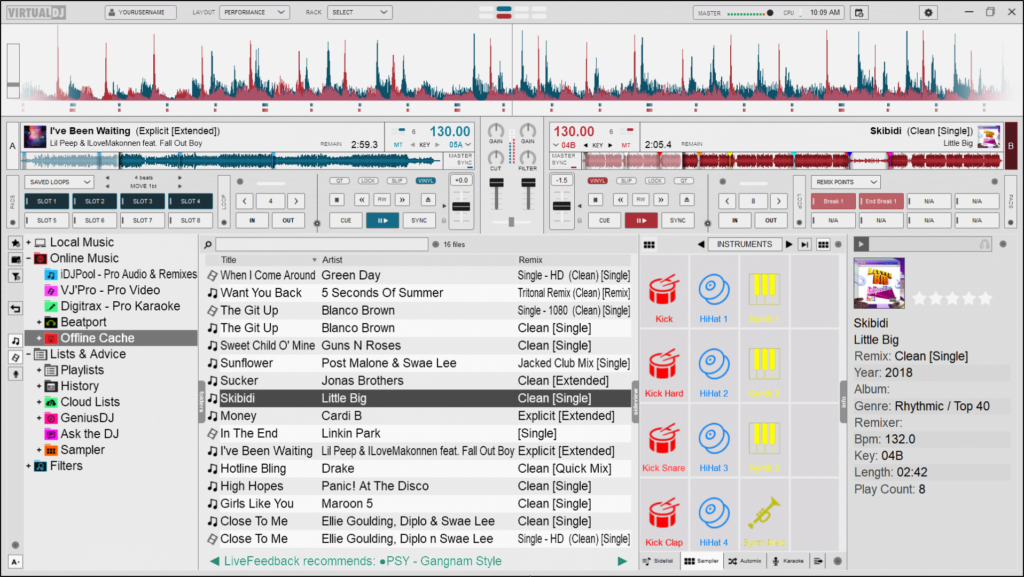
Changes the overall color of the layout (or skin). 4 options are available; Default, Contrast, Dark Mode, or Daylight.
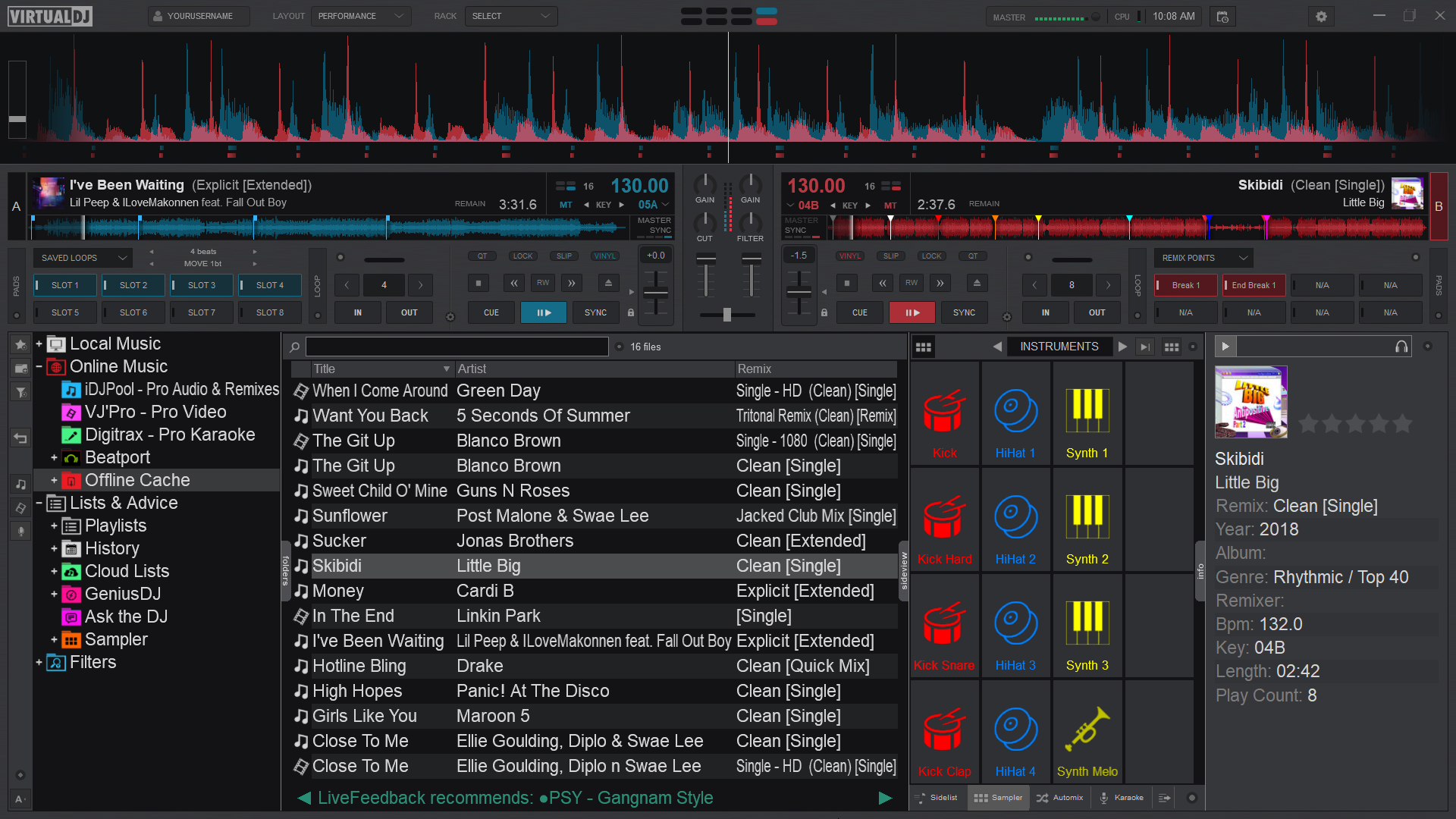
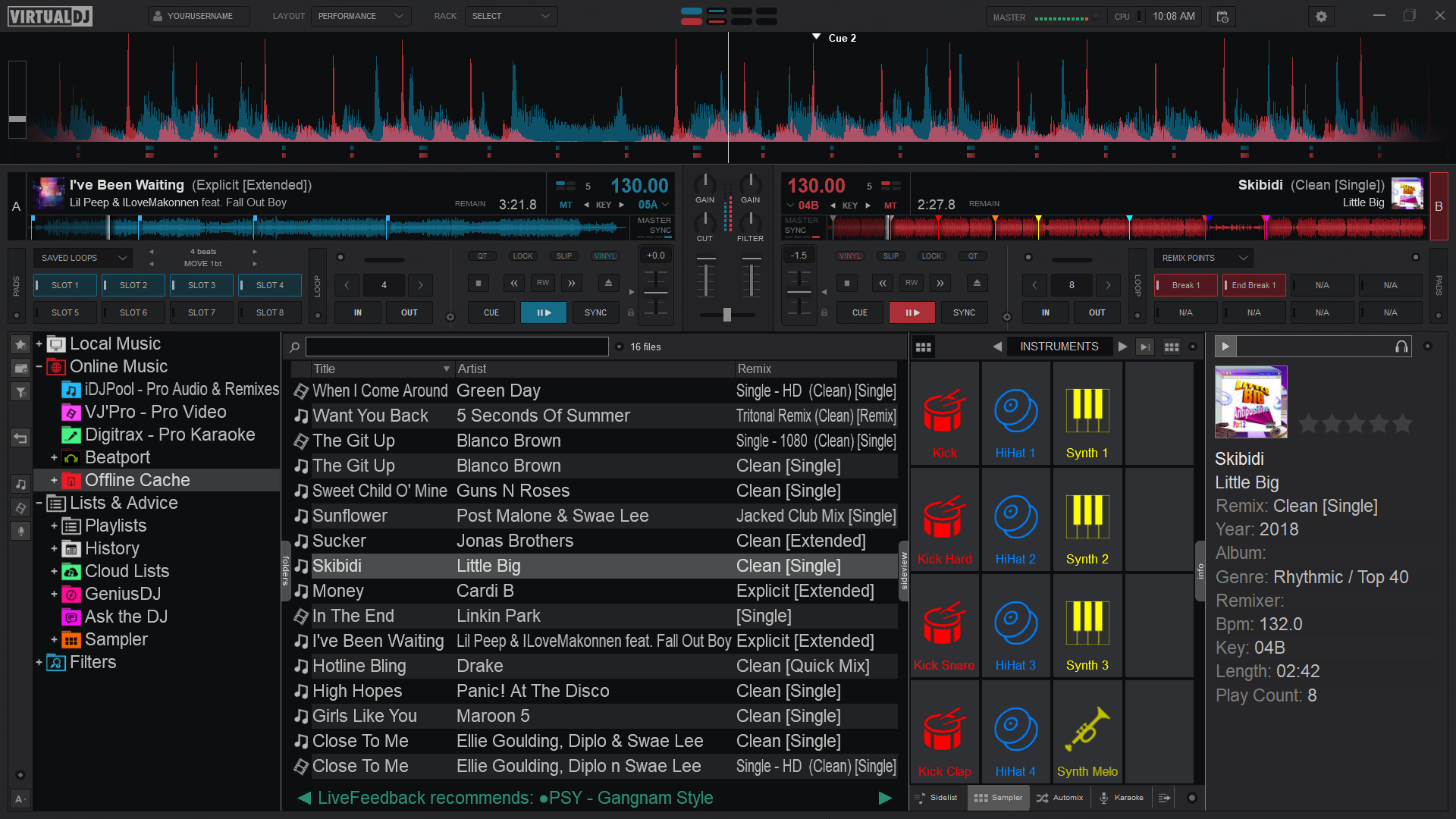
Default
Contrast
Dark Mode
Daylight
Waveform Display
Changes the appearance of the Rhythm Wave.
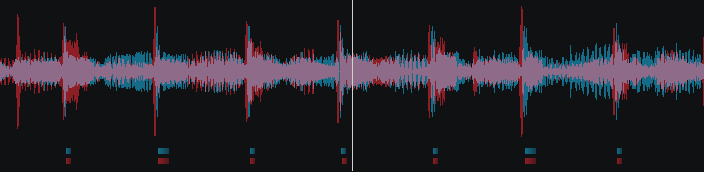
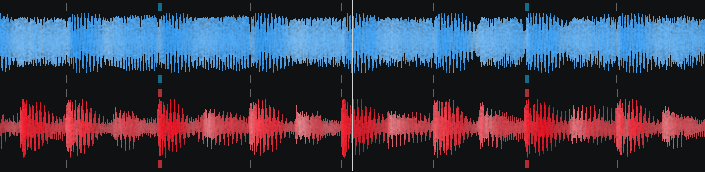
3 appearance options, 3 color options, 3 position options, as well as the ability to show grid lines on the wave and display a bar counter on the waveform:
Appearance Options
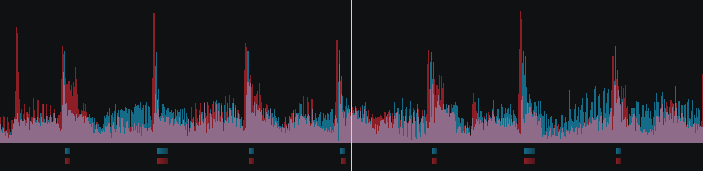
Rhythm Enhanced
Rhythm Mirrored
Full Spectrum
Color Options
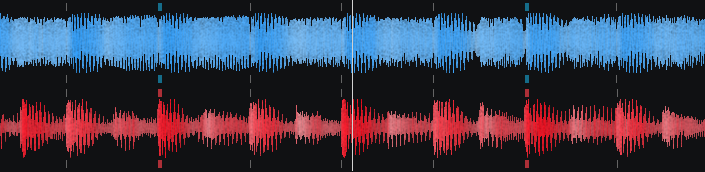
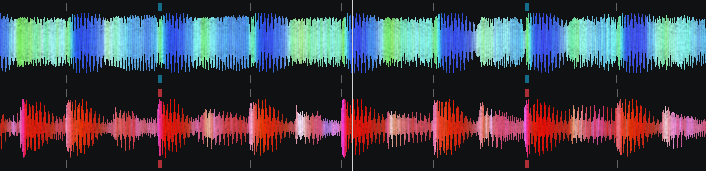
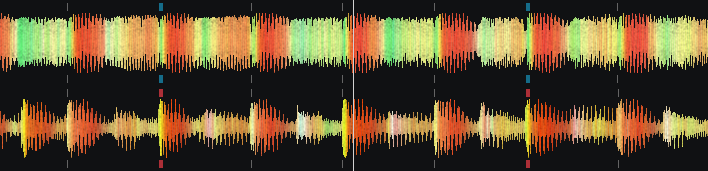
Monochrome
Full Spectrum
Multi Color
Position Options
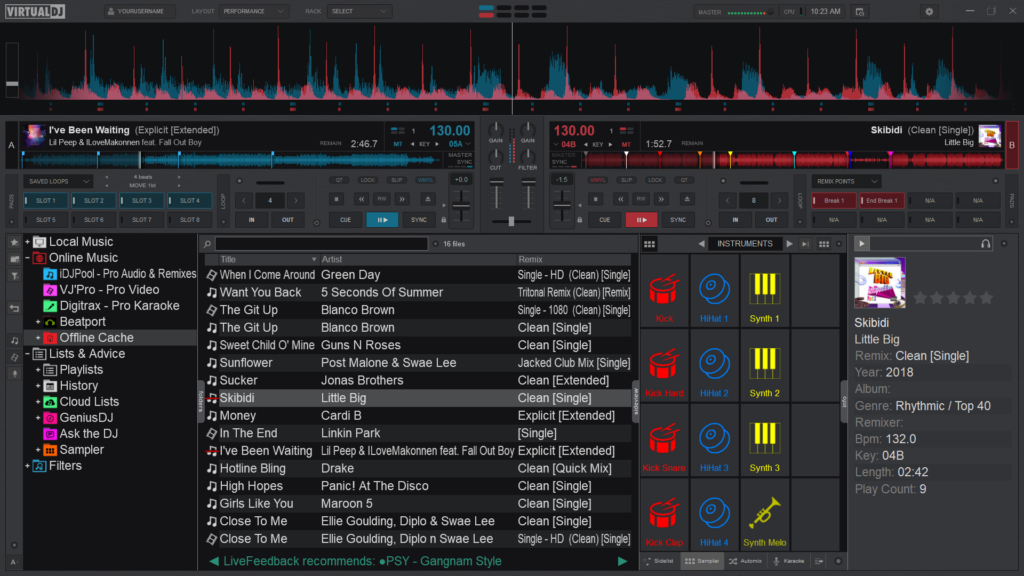
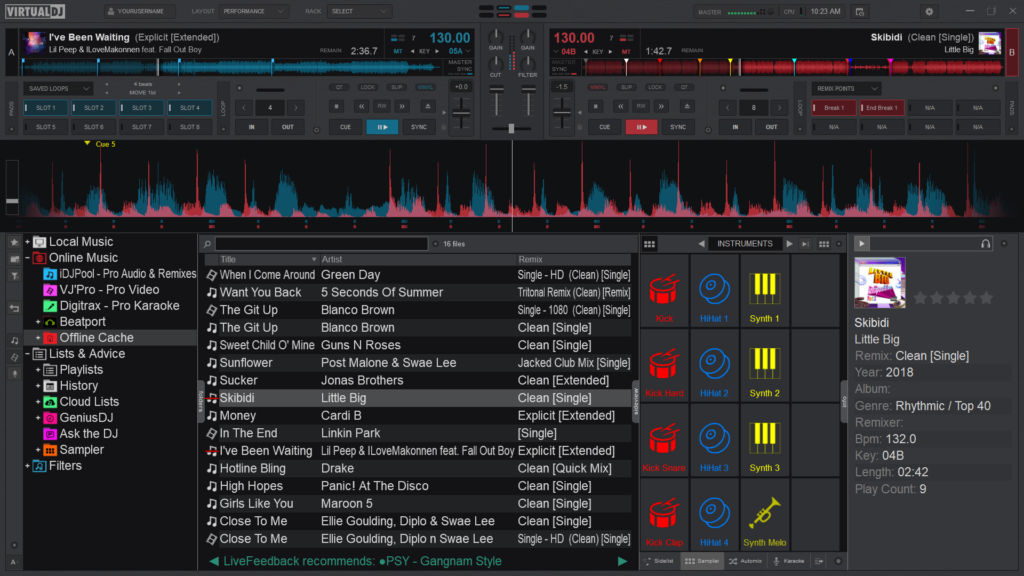
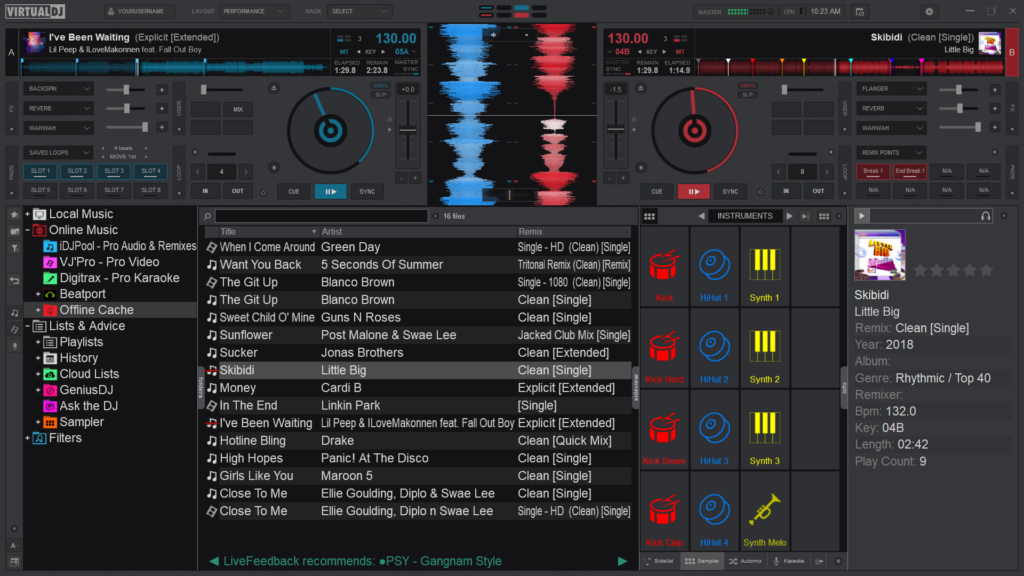
Above
Below
Vertical
Grid lines and bar counter
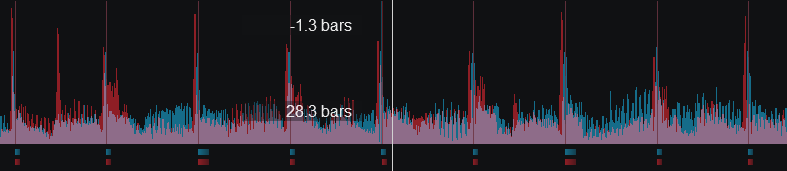
Rhythm Enhanced Waveform w/Grid Lines and Bar Counter
Deck Layout
Changes the size and position of the decks.
3 Options are available; Full, Compact (default) and Small. When the Full option is selected, other characteristics of the layout can be changed such as the jogwheels (See Pro Layout).
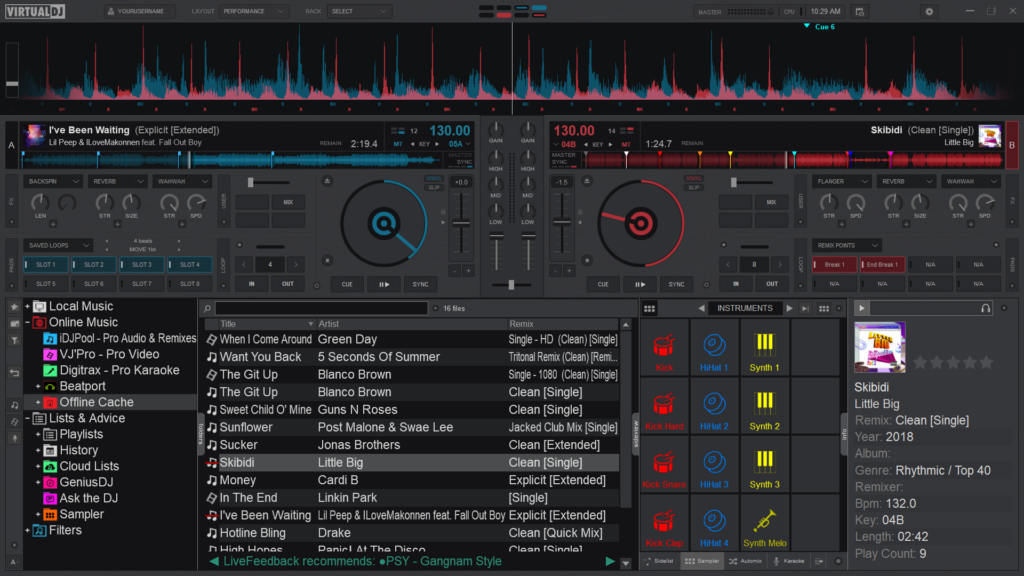
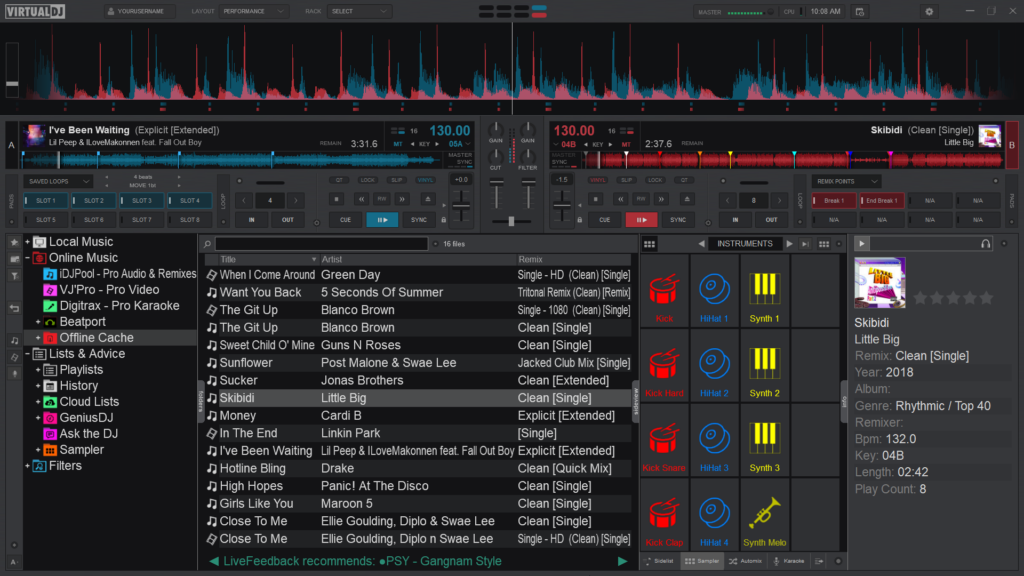
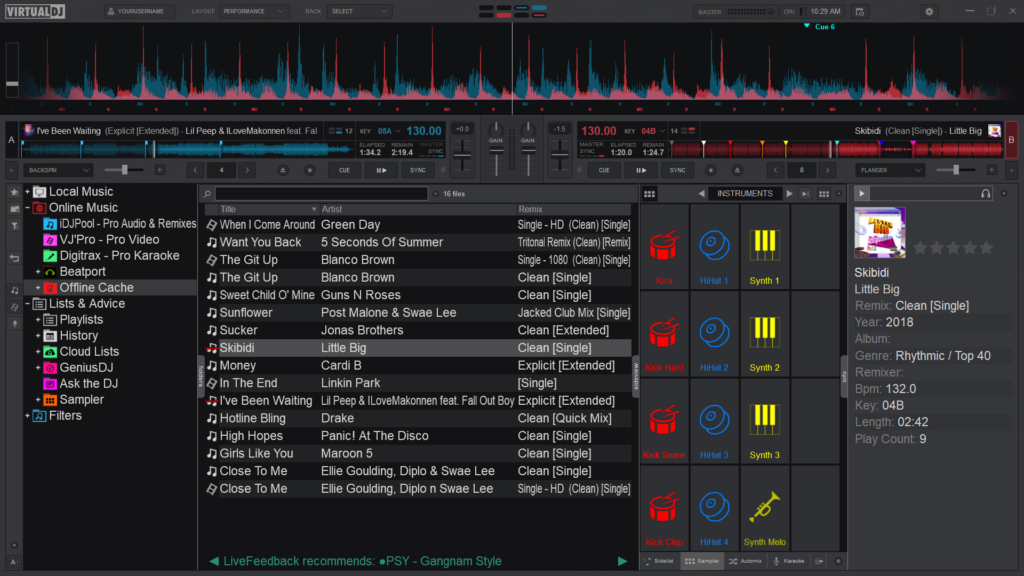
Full
Compact (default)
Small
waveform display
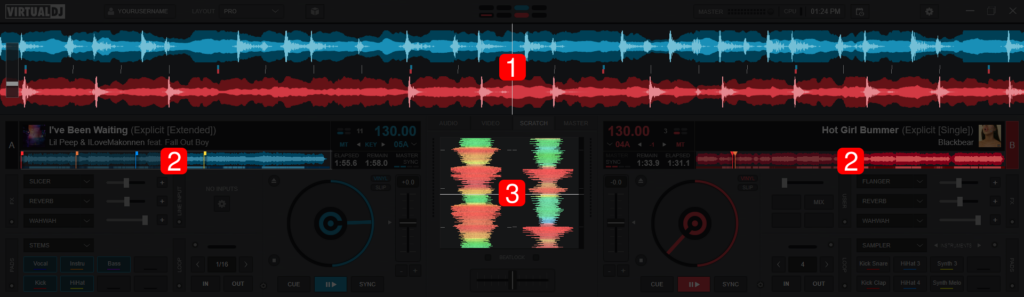
Pro Layout
A waveform is a visual representation of an audio signals frequency and amplitude.
There are 3 locations on VirtualDJ’s Main Interface where waveforms are displayed in order to provide valuable visual feedback to assist with mixing and/or scratching.
- RHYTHM WAVEFORM. Displays the peaks and curves of the track on multiple decks as well as the Computerized Beat Grid (represented by dashes at the bottom of the wave) to better visualize the tracks relationships with one another and make beat matching easier. How the waveform is displayed can be changed by clicking on the Waveform Display selector in the Layout Menu (Essentials, Pro, and Performance Layouts). If Shapes is the selected Waveform, portions of the waveform will be grayed out when using Stem Isolation features in order to visually display which frequencies are amplified or muted.
STARTER
Shapes

ESSENTIALS, PRO, & PERFORMANCE
Beats
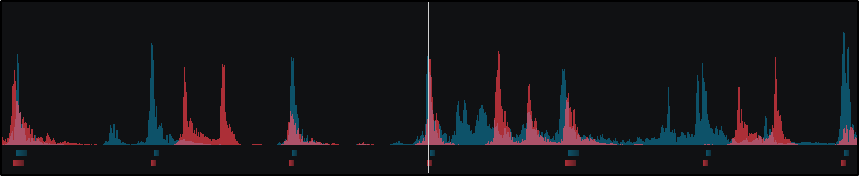
Colors
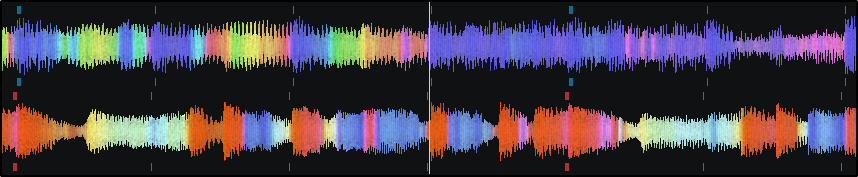
Shapes (Default)
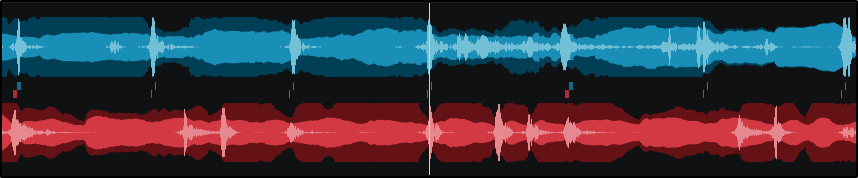
Show Gridlines
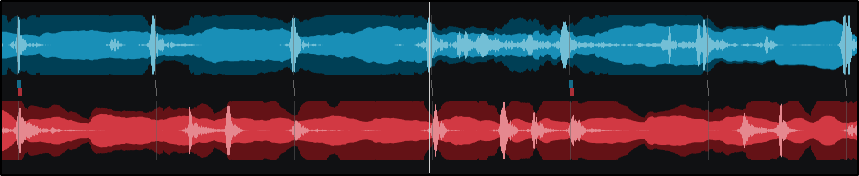
2. DECK WAVEFORMS. Displays a detailed view of the audio information indicated by height and color as well as the tracks playhead indicating its position. The overall track gain (loudness) is indicated by the height of the waveform with the highest parts being the loudest and the shorter portions being softer. If Beats or Shapes is the selected waveform, the decks will display the traditional blue and red waveforms with a beat indicator underneath. If Colors is the selected waveform type, the waveform’s color can be changed to 5 separate options in Settings Options under coloredWaveforms.