Welcome to DJ Knowledge Base
1. Everest Cast Dashboard
Let’s get started. This tutorial is going to help find your way around the Everest Cast Control panel of your Radio Server.
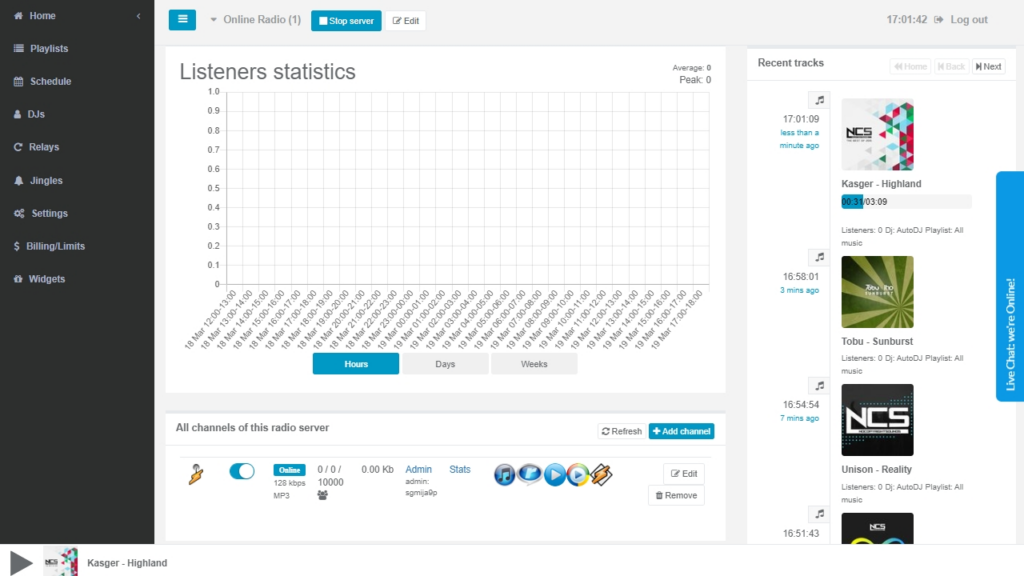
1. The Main Page of the Dashboard contains a menu to the left, buttons that let you Stop and Start the server or Edit the name, lookup recent Listeners statistics, Recently played, queued tracks and access Channel/s Management.
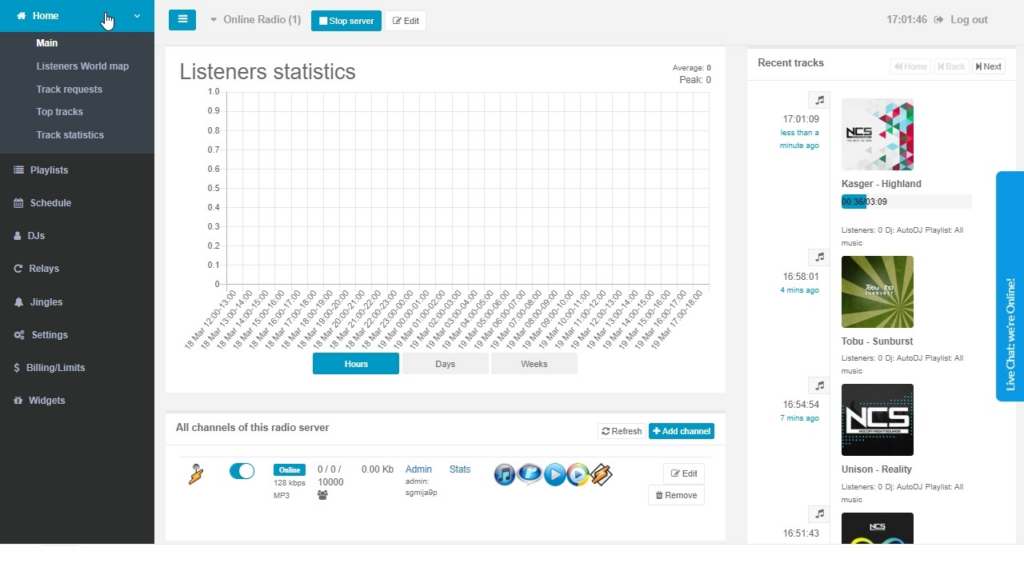
By unfolding Home you get access to further statistics of the broadcasted tracks, listeners’ location on the World Map and more.
To edit your radio station’s core details such as its name, description, genre, or logo in Everest Cast.
At the top where it says radio name, click edit

- Edit the following fields as needed:
- Station Name (Title): Enter the new name for your radio station.
- Music Genre: Select the primary genre that best describes your station’s music format.
- Description: Add a brief description of your station.
- URL Address: Insert the link to your station’s official website or page.
- Logo/Image: You can usually upload a station logo here, which may appear in directories and widgets.
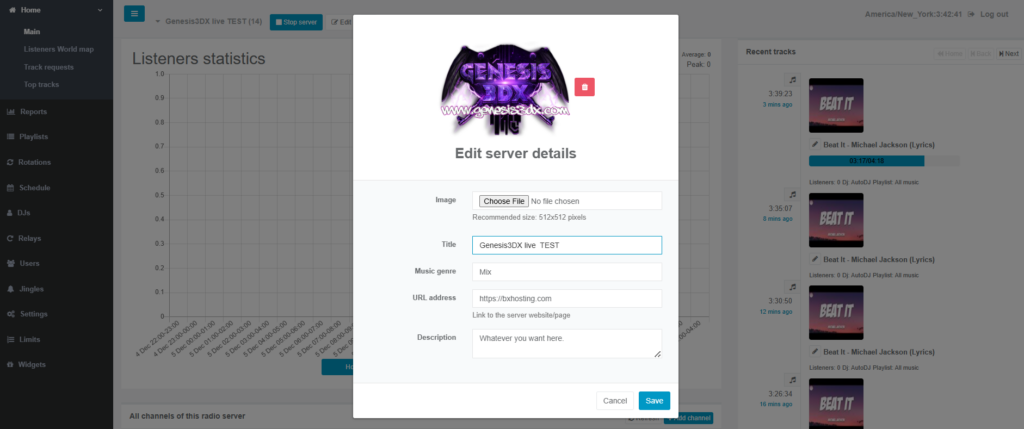
- Click the “Save” button at the bottom of the page to apply your changes.
- Restart the Server: For many changes to take full effect and be updated on public directories or stream links, you often need to stop and then start the radio server using the STOP and START buttons usually found on the main dashboard
