
Centova Cast Control Panel & Mixxx
If you would like to start broadcasting live using Mixxx, make sure you have all the software required:
Download and install Mixxx 2.5.3 (Stable Version) for your PC ops system
1. First of all, if you would like to use AutoDJ and broadcast live using Mixxx, you need to create at least one DJ account in Centova Cast Control Panel by selecting the DJ option in the menu of Centova Cast Control Panel.
Restart the server after adding each DJ account. Only one DJ can be connected to the server at the time.
If you do not use the AutoDJ feature or have a server without AutoDJ, you can skip this first step.
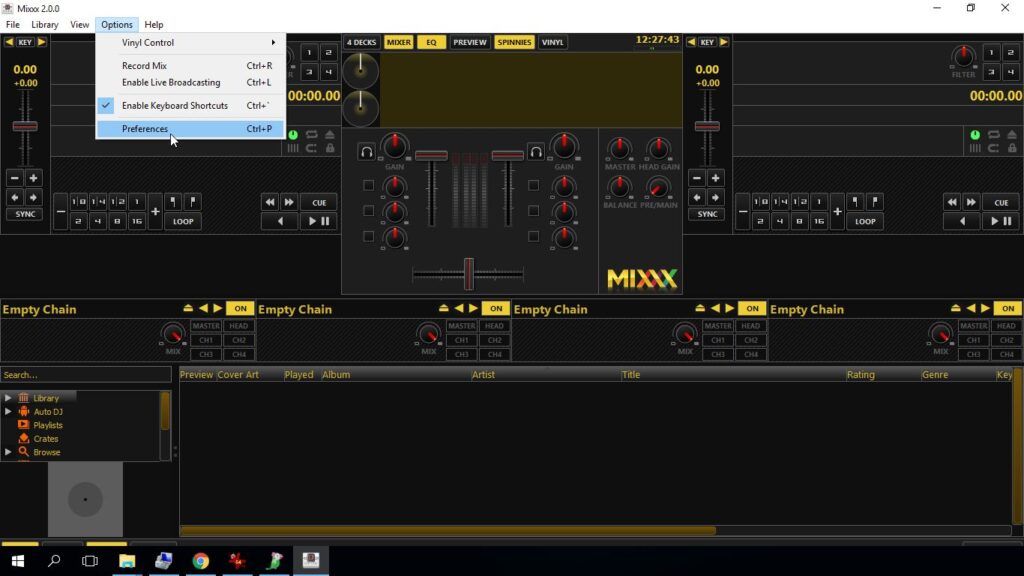
2. Open Mixxx and select Options and Preferences:
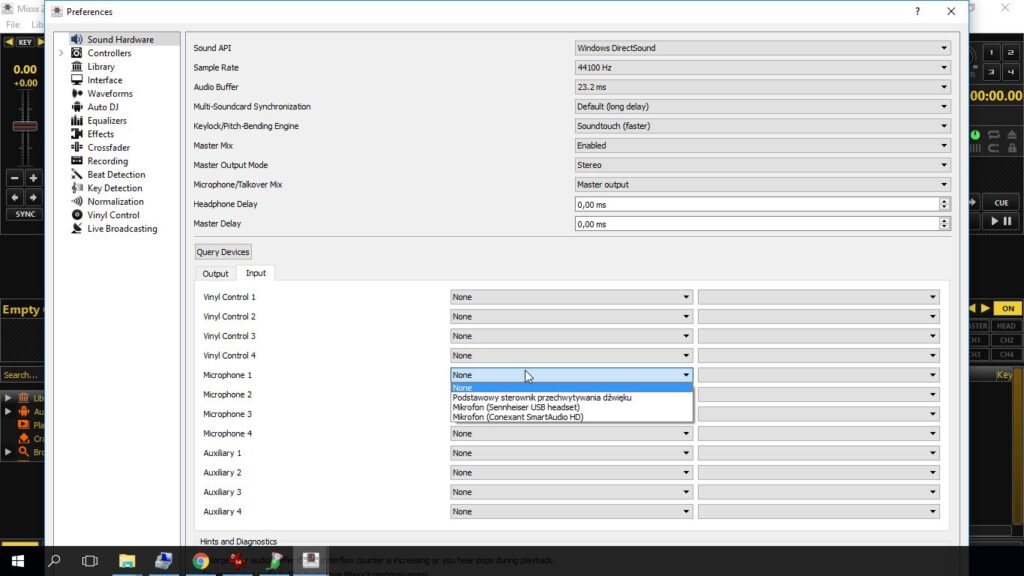
3. If you would like to use a microphone, select it in the Input devices section.
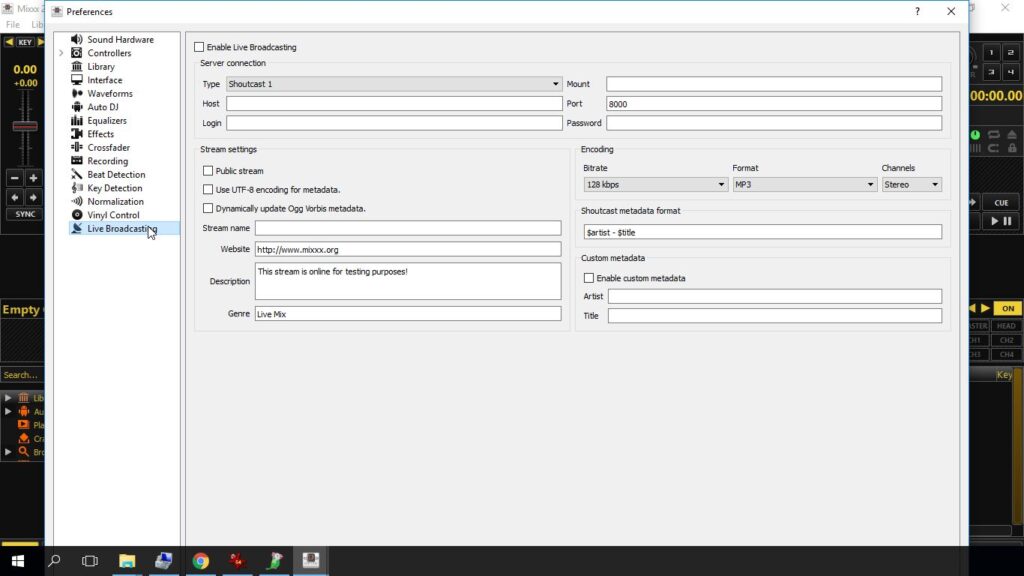
4. To configure the connection to your Radio Server, select Live Broadcasting in the menu.
5. Open the Centova Cast Control Panel of your Radio Station and copy the following details from the Quick link section of your server:
– Hostname (1)
– Port number (2)
– as the password use the source password that you have received by email.
– Mount and Login – leave empty as presented below:
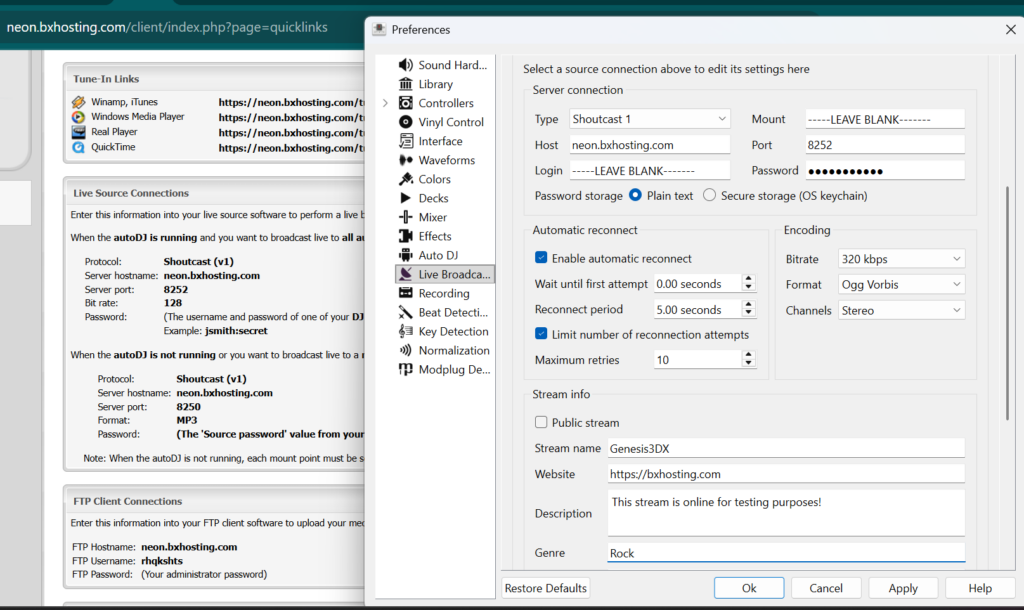
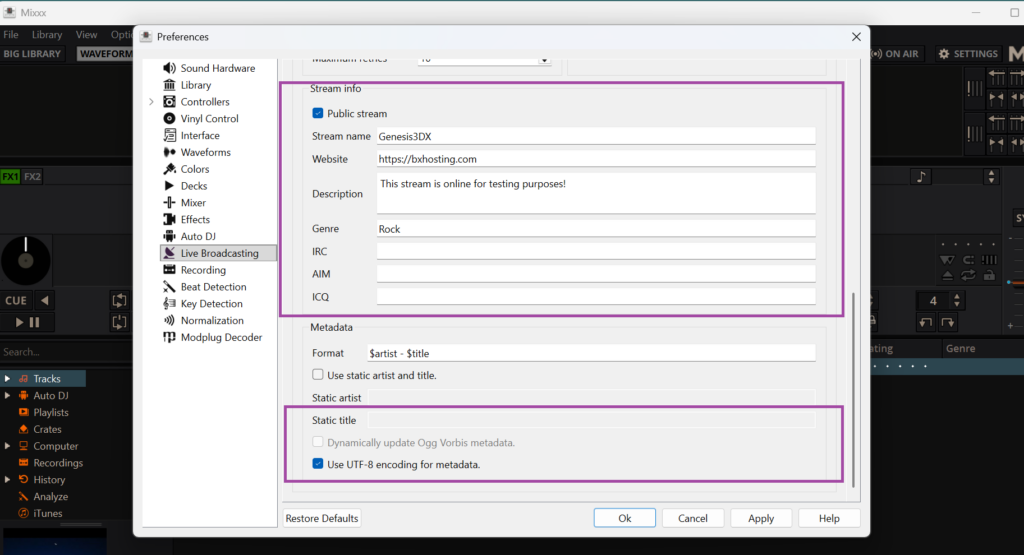
6. Fill in Stream details, it is up to you what details will you use. These are Stream Details that will be seen by your listeners. We also recommend selecting the Public server option and UTF-8 encoding for metadata.
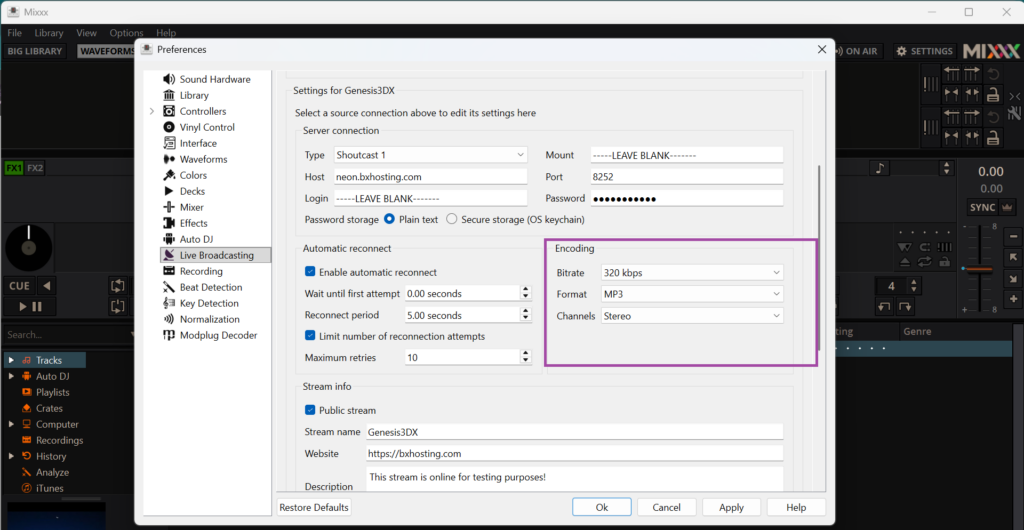
7. Select the bitrate (audio quality) of the stream. If you use AutoDJ the bitrate of your live stream should be the same as the bitrate of your server/AutoDJ. If you do not use AutoDJ make sure that broadcasting bitrate does not exceed the maximum bitrate of your server. You can check the maximum broadcasting bitrate of your server in the Quick links section of your Centova Cast Control Panel.
Select the audio coded for your stream. We recommend broadcasting in MP3 file format because it is supported by most of the players on the Intenet.
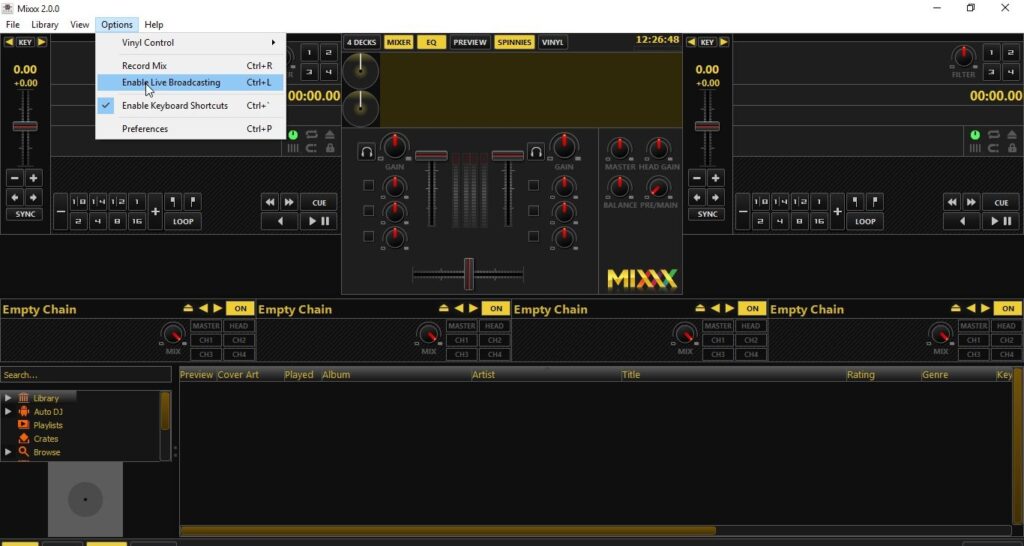
Click Enable Live Broadcasting to connect to the server and start broadcasting live.
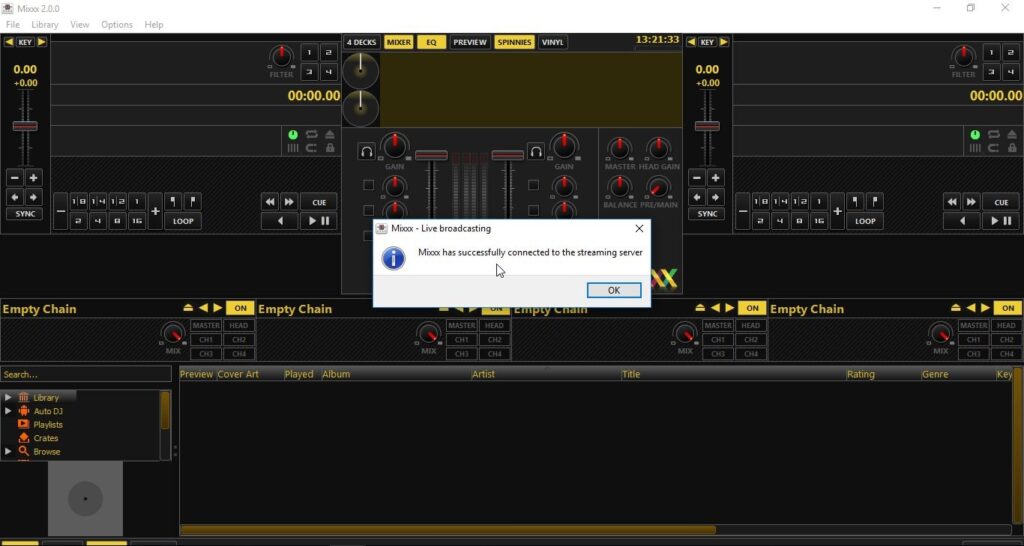
You should see a confirmation that Mixxx has been successfully connected to the server:
You are ready to start broadcasting live!